
Your data
Your data
On your devices, and in your own iCloud if you use it. There are no accounts, analytics or tracking, and nothing is sent to the developer.
Storage
Where it's kept
Your aircraft, flight plans, logbook, recorded flights and settings are stored on your device and, if you use iCloud, in your own iCloud account.
What it does
- Your iPhone and iPad both have them, through your own iCloud account. There is no separate account to create.
- If something is still downloading from iCloud, the app says so, and you can change it once it has downloaded.
- There are no accounts, analytics or tracking. Nothing is sent to the developer.
- The maps load their images from Apple Maps.
How it works
Location
Your location
Your location is used only while you record a flight.
What it does
- The app asks to use your location when you start recording.
- It keeps recording in the background until you finish.
- The Watch uses its own GPS only while you run its tracker, and that track isn't saved.
How it works
Sharing
You choose what goes
Files leave the app only when you choose to share them. Nothing is sent until you tap Share and choose where.
What you can share
With other pilots
- A recorded flight, as a flight file. Another GenAv CoPilot user can add it to their own logbook as PIC, co-pilot (P2), dual (student) or instructor. Leave out the track, names or notes first if you like.
- A flight plan, with or without its Weight & Balance (which includes the weights of the people on board) and its performance readings.
- An aircraft, with its envelopes, checklists and POH charts.
With other apps
- A GPX track of a flight, which never includes your name.
- A flight report as a PDF: the times, the totals with the night definition used, a map of the track over the planned route, and the leg table.
- The pilot log (PLOG) and the Weight & Balance as PDFs, and the route as a GPX file.
- The logbook as a PDF or a CSV file.
How it works
Step by step: sharing a flight
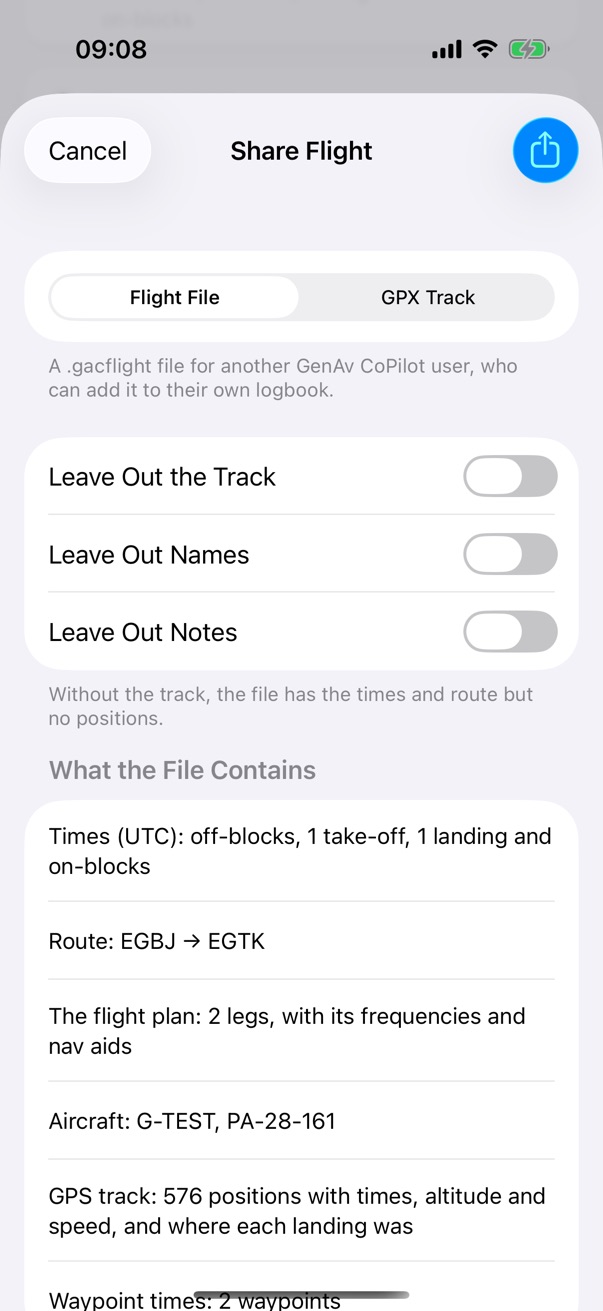
Step 1 of 3
Share Flight
In the Fly tab, open the flight, tap Share, then Share Flight…. Choose Flight File or GPX Track, decide whether to leave out the track, names or notes, and check what the file contains.
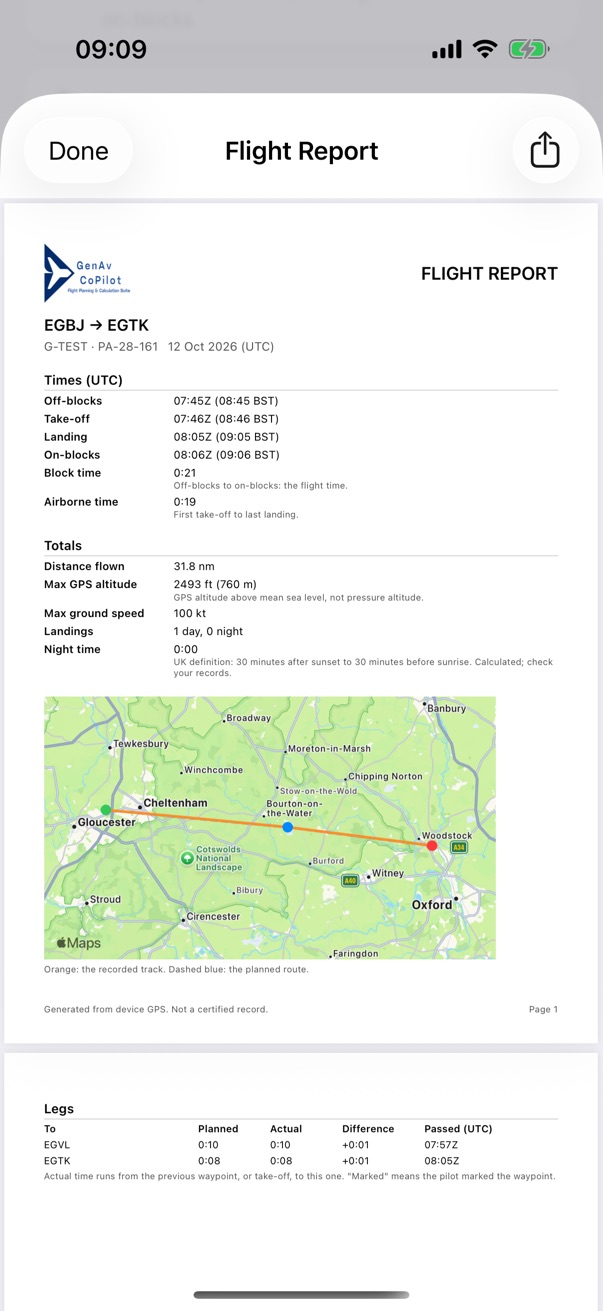
Step 2 of 3
The flight report
A flight report as a PDF, with a map of the track over the planned route.
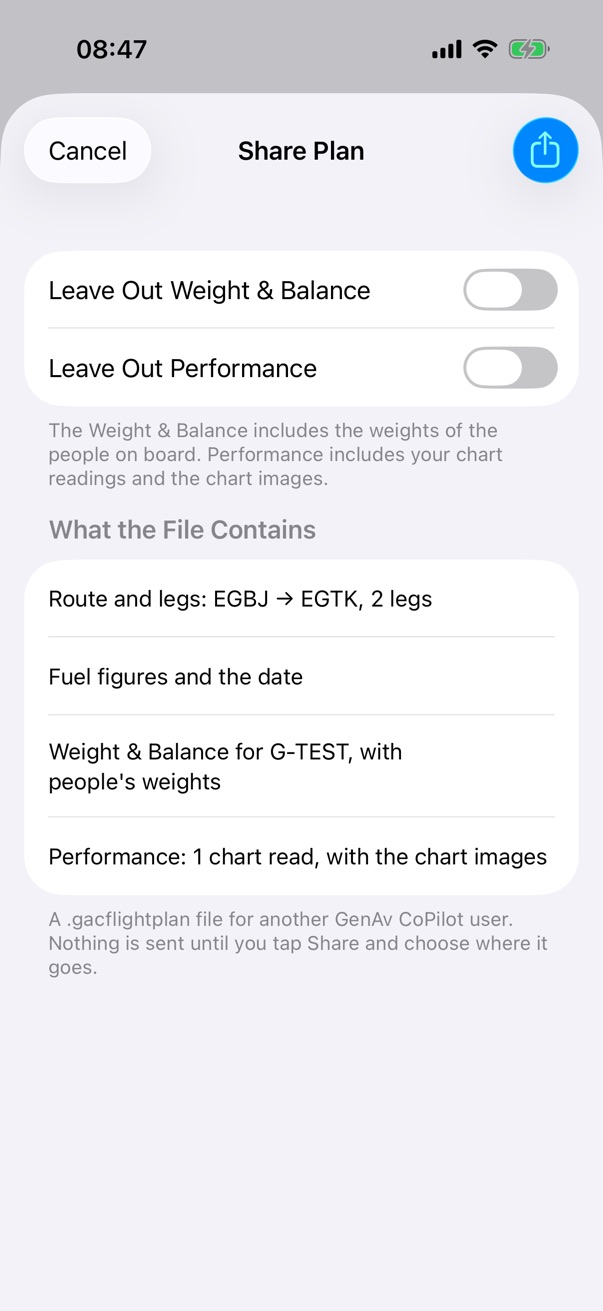
Step 3 of 3
Share a plan
The plan share screen lists exactly what the file contains before you send it.
The Data Policy
The full statement of what the app collects, how it is used and your rights.