Widgets and Siri

Outside the app

The flight on your Lock Screen, your currency on your Home Screen, and three shortcuts for Siri.

Live Activity

The flight on your Lock Screen

While you record, the flight's Live Activity is on the Lock Screen and, on iPhones that have it, in the Dynamic Island.

What it does

  • The next waypoint, with its distance and ETA.
  • It says when the GPS signal is lost.
  • The fuel estimate from the plan.

How it works

Flight Live Activity ETA moved a minute waypoint passed GPS lost 15 s after the last Ends at on-blocks, or just before the 8-hour limit
The flight's Live Activity starts when you start recording. It updates only for meaningful changes, such as the ETA moving a minute, a waypoint passed or the GPS signal lost, never within 15 seconds of the last, and ends at on-blocks or cleanly before the system's 8-hour limit.

Where it appears

Steps
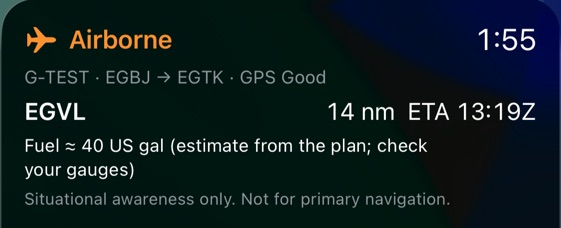
The flight's Live Activity on the Lock Screen: Airborne for 1:55, G-TEST from EGBJ to EGTK with GPS Good, the next waypoint EGVL 14 nautical miles away with an ETA of 13:19 UTC, the fuel estimate from the plan, and the line Situational awareness only. Not for primary navigation.

Step 1 of 2

Lock Screen

The phase and time, the aircraft and route with the GPS state, and the next waypoint.
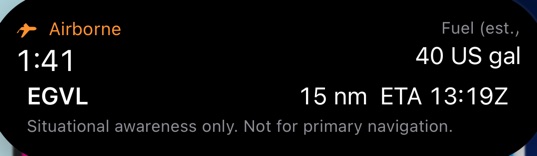
The Live Activity expanded in the Dynamic Island: Airborne for 1:41, about 40 US gallons of fuel estimated, and EGVL 15 nautical miles away with an ETA of 13:19 UTC.

Step 2 of 2

Dynamic Island

Expanded: the airborne time, the fuel estimate and the next waypoint.

Widget

Your currency, on your Home Screen

A currency widget for your Home Screen, in two sizes.

What it does

  • The items most in need of attention, first.
  • It updates when your logbook or settings change.

How it works
Logbook orsettings change App works outthe currency Snapshot in theApp Group Widgetredraws The widget never reads the logbook itself
Whenever your logbook or settings change, the app writes what the Currency screen shows to a snapshot the widget can read, and asks it to redraw. The widget shows the items most in need of attention.
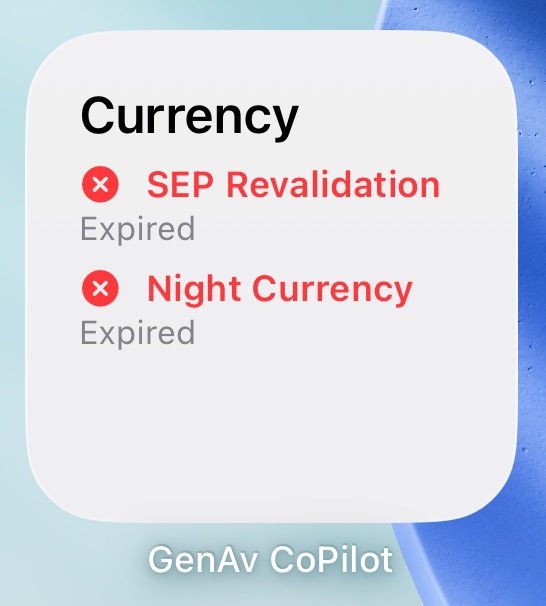
The GenAv CoPilot currency widget on the Home Screen, in the small size: Currency, with SEP Revalidation expired and Night Currency expired.
The currency widget, small size.

Siri and Shortcuts

Three shortcuts

Start Flight, Currency Status and Crosswind for Runway, from Siri or the Shortcuts app.

What it does

  • Start Flight opens the app ready to record: choose your aircraft, then tap Start Flight.
  • Currency Status reads out what needs attention.
  • Crosswind for Runway asks for the runway and the wind, and gives the components. It's a planning aid, and has no verdict.

How it works
Crosswind in GenAv CoPilot Which runway? Say a number from 01 to 36. 26 What's the wind direction, from 0 to 360 degrees? 240 What's the wind speed in knots? 15 Runway 26, wind 240 at 15: crosswind 5 knots from the left, headwind 14 knots.Calculated from the wind you gave; a planning aid only.
Say "Crosswind in GenAv CoPilot". Siri asks for the runway, the wind direction and the wind speed, then gives the components, rounded to whole knots. It works from the wind you give, has no verdict, and is a planning aid only.
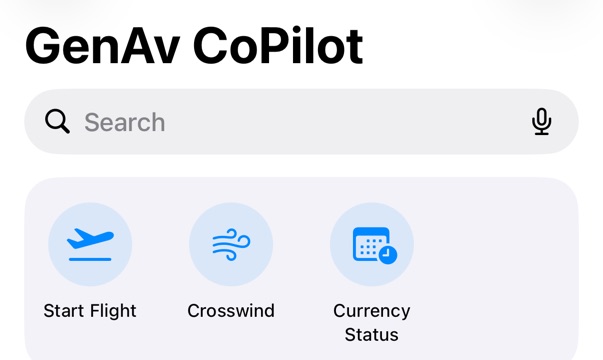
The Shortcuts app's GenAv CoPilot page with the app's three shortcuts: Start Flight, Crosswind and Currency Status.
The app's shortcuts in the Shortcuts app.
NextYour dataWhere it is kept, and what you share.